Adding Plants
Search, select, and place plants in your garden plan.
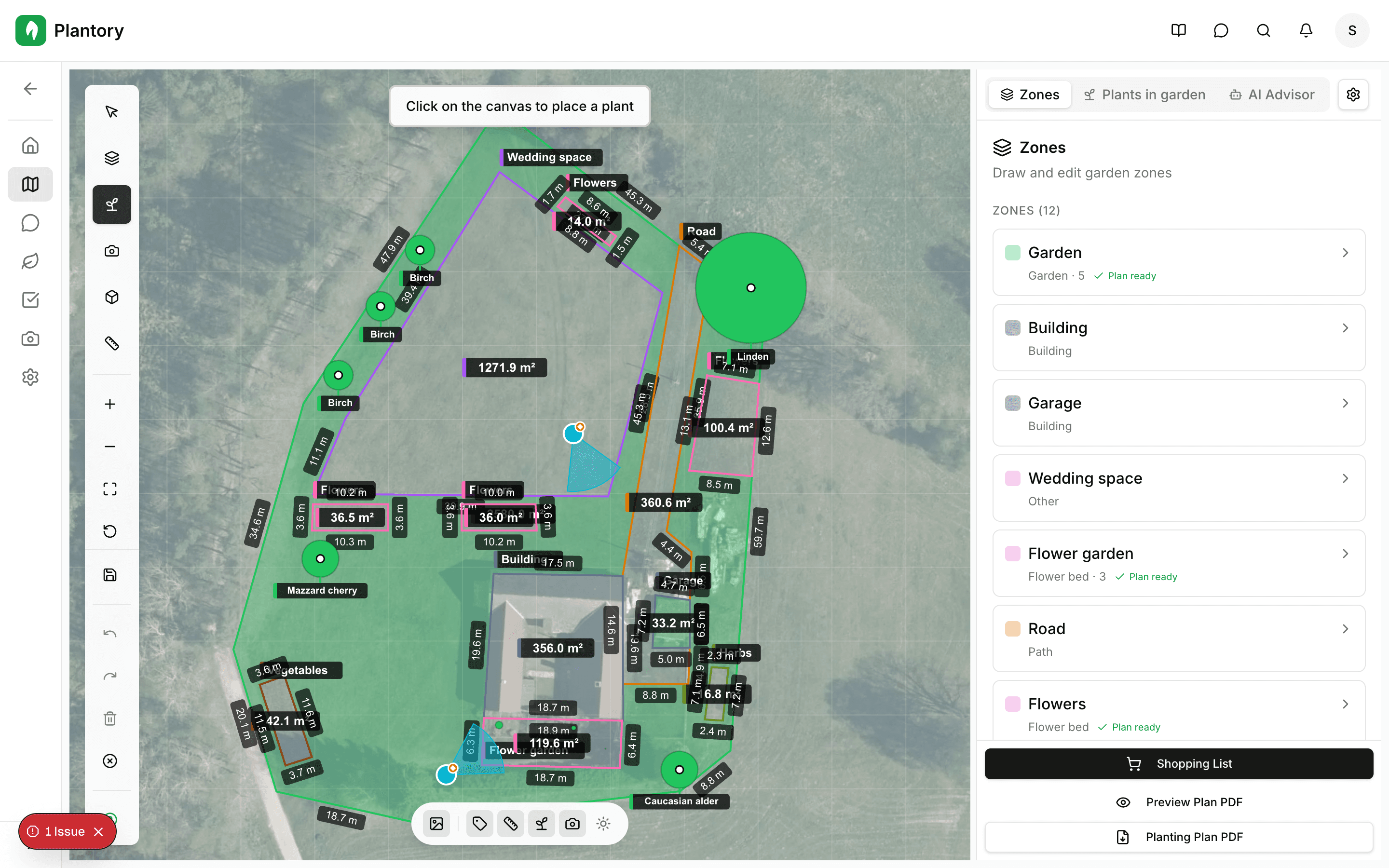
Using the Plant Tool
The plant tool lets you add plants to your garden canvas. Each plant is represented by an icon showing its type and size.
Select the Plant Tool
Click the plant icon (flower) in the toolbar on the left side.
Search for a plant
Type the plant name in the search box that appears. You can search by common name or scientific name.
Place on canvas
Click on the canvas where you want to place the plant. It will appear as an icon.
Searching for Plants
Plantory includes a large plant database. Use the search to find exactly what you're looking for.
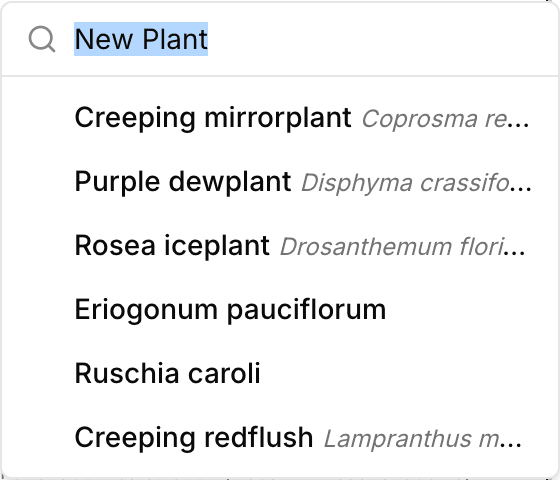
Search features:
- Search by common name in your language
- Search by scientific name (Latin name)
- See plant details before adding
Can't find a plant?
Try searching by the scientific name, or use a more general term. If you still can't find it, you can add a custom plant.
Plant Information
When you select a plant, you can review its details and configure basic properties for planning.
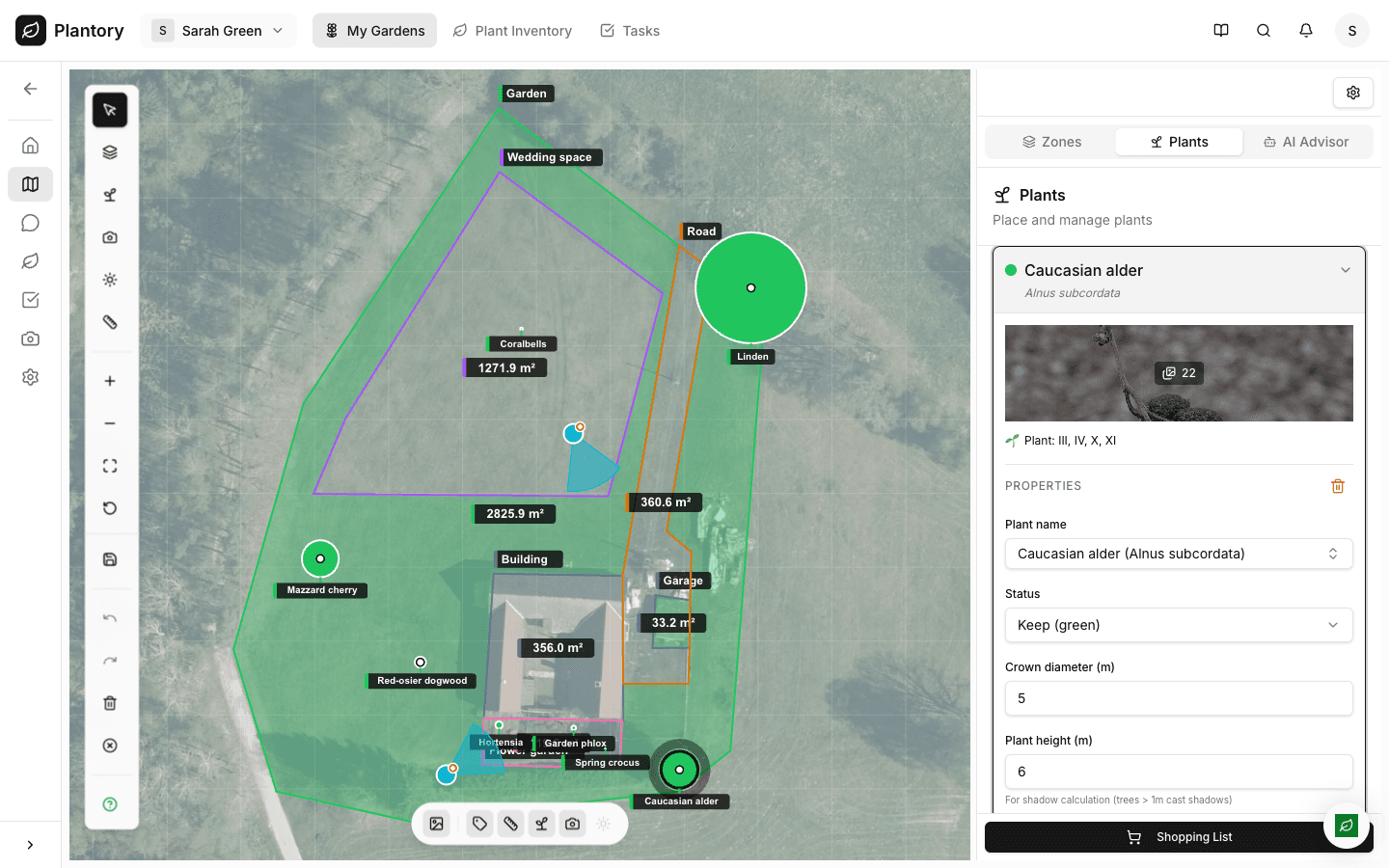
You can typically configure:
| Setting | Description |
|---|---|
| Plant name | Search and select a species (common or scientific name) |
| Status | Mark as keep / remove (useful for planning changes) |
| Crown diameter (m) | Estimated footprint size (especially useful for shrubs/trees) |
| Plant height (m) | Used for shadow calculation (trees > 1m cast shadows) |
Placing Plants on the Canvas
Once you've selected a plant, place it on your garden plan where you want it to grow.
Click to place
Click anywhere on the canvas to place the selected plant at that location.
Adjust position
After placing, you can drag the plant to fine-tune its position.
Add multiple plants
Keep clicking to add more of the same plant. The tool stays active until you select a different tool.
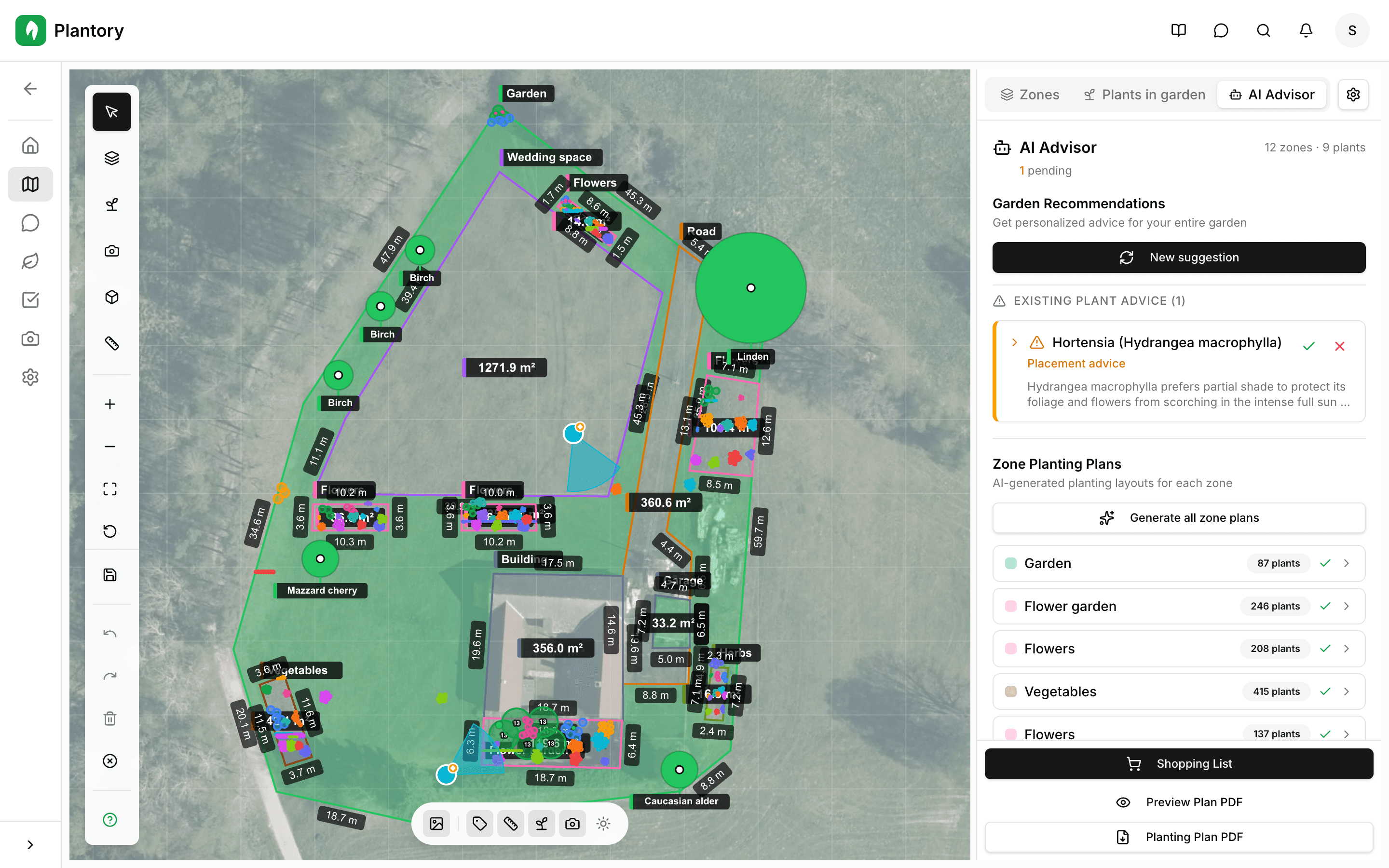
Plant spacing
Plants are displayed at their actual size based on the scale you set. Plantory will warn you if plants are placed too close together.
Plant Inventory
The Plants page shows all plants in your garden. Navigate to the Plants tab for a complete inventory.
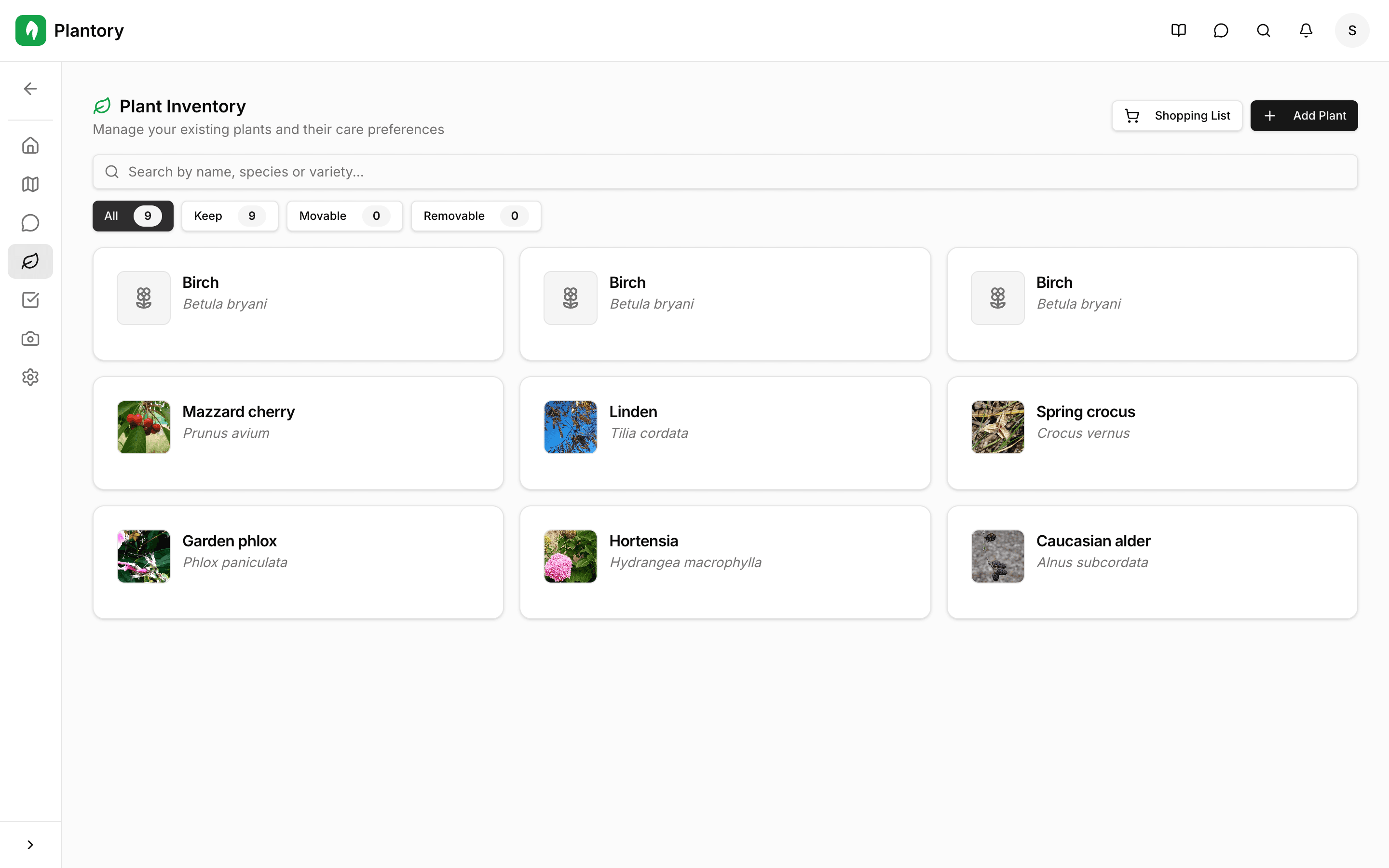
Inventory features:
- See all plants grouped by type
- Filter by zone or plant type
- Click a plant to highlight it on canvas
- Add notes and observations to each plant
Editing Plants
After placing plants, you can easily modify them using the selection tool.
- Drag to move plants to a new location
- Drag corners to adjust the display size
- Select and press Delete to remove
- Copy and paste to duplicate plants